Chapter 8
Show machines and clusters
Play the show with the render node, spread outputs over several PCs, and where to find external control.
The render node: pixelwright-node
On the machines that play the show, use pixelwright-node instead of the studio. It has no editing UI: it opens the show’s outputs on their displays and plays the timeline. The show and the render run off the main thread, so a stuck window or a system dialog does not freeze the outputs.
On macOS it lives inside the app: "/Applications/PixelWright.app/Contents/MacOS/pixelwright-node".
pixelwright-node --list-monitors                 # connected displays: names, resolutions, positions, mirroring
pixelwright-node --project MyShow/MyShow.bp      # every output fullscreen on its display
pixelwright-node --project MyShow/MyShow.bp --windowed   # everything in windows, to test
Keys on the node: Space play/pause, Home rewind, ← / → seek 1 s, Esc quit.
Before a show:
pixelwright-node --project MyShow/MyShow.bp --soak 10plays the show for 10 minutes and gives a verdict on dropped frames, cadence and memory. Run it fullscreen on the real show machine.
Several machines, one show (cluster)
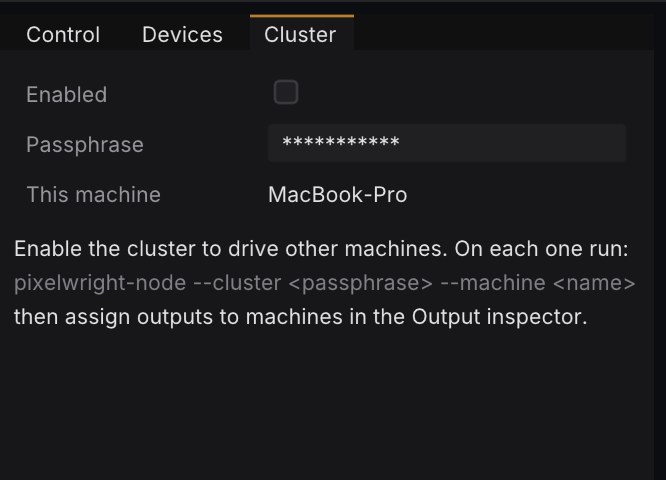
One main machine (Main) leads, the others follow its clock and render their own outputs. The cluster needs a Pro licence on every machine (Learn cannot join).
-
In the studio, open Cluster (Live workspace, right), turn it on and set a Passphrase.
-
On each render machine run:
pixelwright-node --cluster <passphrase> --machine PROJ-LEFT(
--machinedefaults to the computer name.) -
In the Inspector of each output, choose its Machine. Outputs without a machine are rendered by the studio.
-
The Cluster panel lists every machine: online state, show up to date or download progress, clock offset and round trip, fps and dropped frames, and an Identify button.
What happens for you:
- The show and its media are copied to every node automatically and verified with checksums; only what changed is downloaded.
- Live edits in the studio reach the nodes between frames, without stutters.
- The timeline follows a shared clock (sub-millisecond on a LAN).
- The network traffic is signed with a key derived from the passphrase: other machines on the network cannot control the cluster or download the show.
Check the sync with the Sync check test pattern on every output: film all the displays with one camera; they must show the same frame number and the bar in the same place.
A Backup: pixelwright-node --cluster <passphrase> --machine SPARE --backup takes over if the main machine disappears, exactly where the timeline was, and steps back when the director returns. A node can also lead without the studio: pixelwright-node --project Show/Show.bp --cluster <passphrase> --director.
Limits today: without genlock the sync is clock-based (the same timeline frame, each display at its own vsync phase). Genlock with NVIDIA Quadro Sync (
--genlock, Windows) is built but not yet tested on Sync hardware.
External control: where to look
PixelWright can be driven by lighting desks, show controllers and scripts. A quick map (the details live in the Live workspace panels):
| What | Where |
|---|---|
| OSC (UDP 9000 by default): transport, cues, tracks, layers, master | Control → OSC |
| DMX over Art-Net / sACN (32 channels per layer, QLC+ fixture export) | Control → DMX · layer personality |
| MIDI controllers with Learn, MIDI Show Control | Control → MIDI · MSC |
| Timecode in: LTC, MTC, Art-Net, OSC. Preview (only the editor follows) or Live | Timecode panel |
| Devices: Blackmagic Videohub, PJLink projectors, MIDI, OSC, TCP/UDP | Devices panel |
| Web remote, monitor and REST/WebSocket API, served by the studio and every node | Logic → Installation → Remote · monitor · API |
| Bitfocus Companion (Stream Deck) | its own PixelWright module |
External control keeps working with Show Lock on.