Chapter 1
Install and first launch
Download the program, open it for the first time and activate a licence when you need one.
Download and install
- Download the build for your system from the download page and check its SHA-256.
- macOS: open the
.dmgand drag PixelWright to Applications. The app contains everything: the studio, the render node (pixelwright-node) and the encoder (pixelwright-encode). - Windows and Linux: unpack the ZIP or TGZ; the programs are in
bin/.
Heads-up: builds are not code-signed yet, so macOS Gatekeeper or Windows SmartScreen warns the first time you open the program. Windows and Linux builds have not been run on real machines yet; macOS is the tested platform.
First launch: the welcome screen
Open PixelWright (the studio). Without a show it opens the welcome screen:
- New show: an empty stage.
- Demo stage: LED walls, projectors and cues ready to explore. It is the quickest way to learn the program.
- Open…: a show you already have (a
.bpshow folder). - Recent: the last shows you opened or saved.
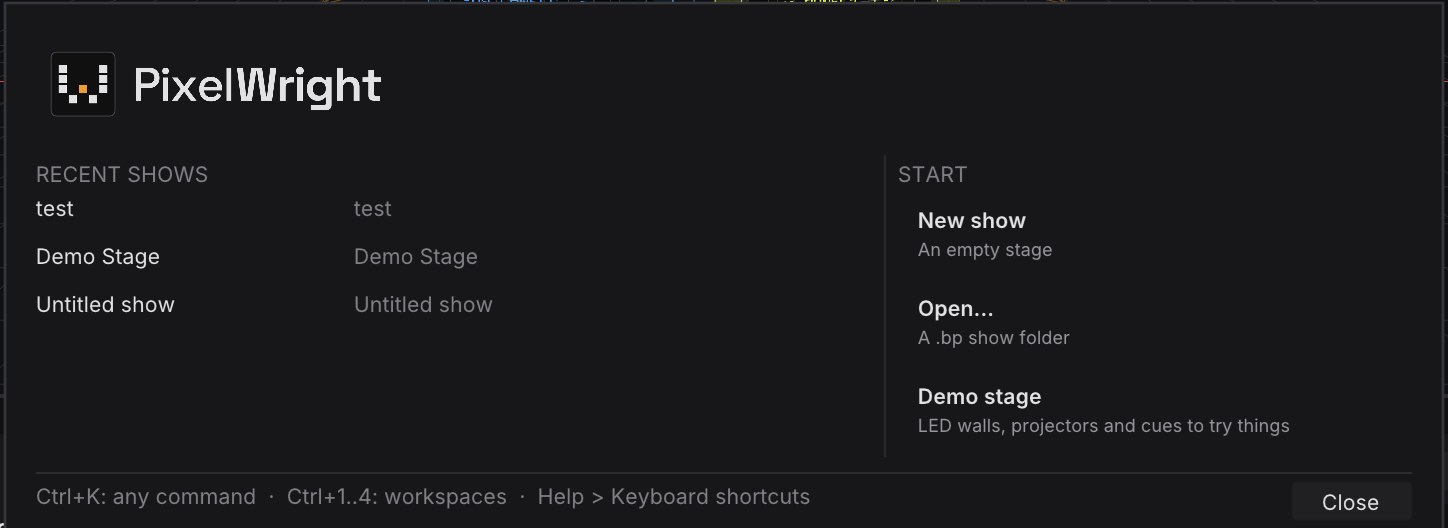
You can come back to it at any time with File → Welcome….
Learn mode: no account needed
Without a licence the program runs in Learn mode. Everything works, with three limits:
- every output carries a “PixelWright · Learn” watermark;
- only one output renders: in the studio, the first one whose window is on; on a show machine, the first one it opens. The others show a NO LICENCE · LEARN: 1 OUTPUT card;
- the machine cannot join a cluster (not as main machine, node or backup).
Learn is perfect for building a show, training and previsualising. When you need clean outputs, more than one output or several machines, activate a Pro licence.
Activate a machine with internet
- In the studio open Help → License….
- Click Sign in and activate. Your browser opens our activation page with a code.
- Sign in, check that the code and the machine name match, and click Approve.
- Go back to the program: it receives its licence within a few seconds.
The License window then shows the plan, the account and the expiry date. An online licence renews by itself when there is a network.
Activate a machine without internet
Show machines are often offline. For them, use an offline licence file:
- Copy the machine code: in Help → License… (Copy button) or with
pixelwright-node --machine-code. - On any computer with internet, sign in to your account, use Offline licence with that code and download
license.bplic. - On the show machine: Help → License… → Import license file…, or
pixelwright-node --license license.bplic.
Good to know: a licence never stops a running show. It is checked when the program starts and when a show is loaded, never during playback. To free a seat, use Help → License… → Deactivate this machine. The licensing FAQ covers renewals, seats and offline machines in detail.